Deploy Logic app and API connection using a Service Principal with an ARM template

A few days ago I created a simple Logic App that gets triggered by http post and then executes a runbook. Given the simplicity, I could have just used a Flow instead of a Logic App, but the reason behind it is that it needs to connect to the Automation Account using a Service Principal rather than client credentials, and that’s only available to Logic Apps connectors.

Overall, the app is pretty simple:

The challange appeared when I tried to automate the deployment process. I generated the ARM template for both the connection and the logic app and tried to deploy it. I was expecting the app id and secret to be just there in the template and I would then replace them by parameters, but that wasn’t the case. In fact, every time I deployed the connection using the ARM template, I found I had to go an authorize it and it would end up using the deployment account credentials. I needed a way to automate this deployment in DevOps so that it could use a client id/secret specific to the environment.

Get the API connection template

When you get the ARM template, it will look something like this:

As you see, there’s no authentication information there, although my connection was configured to use a service principal, with an app id and password. So, the challenge was to find a way to specify it in the ARM template.

That information can be specified inside the properties node, in parameterValues. But, how can you know how to specify that information. Well, that depends on the type of connection.

Getting the API parameters

I used ARMClient to get the API metadata:

armclient.exe get https://management.azure.com/subscriptions/{subscriptionId}/providers/Microsoft.Web/locations/{region}/managedApis/{Api}?api-version=2016-06-01

That will return a json file, you need to look at the “connectionParameters” node:

There were several connection parameters and I didn’t know if I had to specify values to all of them. But then found that, while editing the logic app, the browser will also authenticate using the same approach. I opened the logic app and searched for the app id in the browser requests. There, I found this request:

The request was sending the following parameters (from the full list of parameters I found in the definition before):

  • token:TenantId
  • token:clientId
  • token:grantType
  • token:clientSecret

So, I just went ahead and specified those values (as parameters) in the “parameterValues”:

Then, declared those parameters:

Now, my ARM template contains both the connection and the logic app, and I can automate the deployment to any envirionment:

Library components in SPFX

So, you have a couple of SPFX solutions and they all share some code. You’d like to put that code together, build a library and make those SPFX solutions consume it. SPFX 1.9.1 now officially includes library components and that’s exactly what it’s for!

I’ll walk you through a basic example where I build a library that gets some information from the current SharePoint site using @pnp/sp. Then another solution, a webpart, that doesn’t have any reference to pnp and just consumes the function that the library exposes. Let’s get started!

To start with, ensure you have the latest version of the sharepoint generator:

Once you have installed version 1.9.1, just go ahead and create a new SPFX solution.

  • when it asks you to skip tenant deployment, say yes
  • when it asks you to create an isolated webpart, say no
  • and when it asks you for the type of component, here you’ll see the new option, library

You’ll have created your first SPFX library. Check the manifest file, you’ll see the component type:

Let’s focus on creating our reusable class/method. In this case, I just took the default library that the generator created for me, added a reference to @pnp/sp and created a method that retrieves the web title:

Our library is now ready to use. Let’s focus on the consumer webpart. Start by adding a reference to your library:

You can get your library name and version from your library package.json file:

Go ahead and import the library in your code:

Ups! If you compile, you’ll get an error. It can’t find your library:

What’s going on here is that npm doesn’t know about your library, you need to link it. So, go to your library and run npm link:

Now go to the consumer webpart and link it to the library, by typing npm link and the library name:

Now your import statement will be recognized as valid. So, go ahead and consume the library from within your webpart. In my case, I’m just showing the web title to the end user:

Now, both your library and webparts are ready. You have these options:

  • Debug your webparts using the workbench. In this case, just bundle them and gulp serve. Note: ensure both components are using a different local server port, otherwise, only one will run successfully. Compare both serve.json files.
  • Debug your webparts by adding them to any page. In this case, package them and upload them to the app catalog. Same as in the previous scenario, ensure gulp serve is running for both on different ports
  • Or just package them with ship and upload them to the catalog.

In any case, there you go:

If you’re running your webpart and library in debug mode, you’re able to debug both of them:

If you shipped your code, you can see the request to library file to the app catalog (or the CDN):

Hope you find it useful!

Search WebParts in SharePoint modern pages

Just came across some news saying that PnP Modern Search components got updated to version 3.6.3, among other things it includes a details list template. So, thought it would be useful to share my experience with these set of PnP components that I leveraged for a client solution a couple of weeks ago.

As most of you know, the list of components available to modern pages is still short and one of the components I missed the most are those related to search. Modern pages still lack components that you can use to show search results and let users interact with them, such as content search webpart, refiners, search box, etc

The PnP team released this set of components called “Modern Search” webparts, that are the key replacement for them. In less than an hour, I built this page that displays search results having the same content type from different locations:

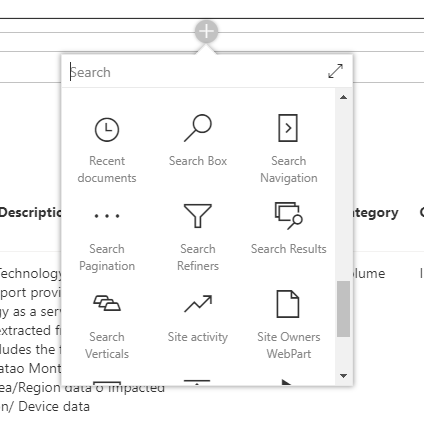
This suite comes with a set of components that I’ve used in this page, ready to work together:

  • Refiners panel, the one on the left, that lets you refine your search the same way the classic refiners panel did
  • The searchbox, that mimics the classic searchbox functionality
  • The search results, that is the main webpart and displays the search results
  • The pager, that you can configure from the search results one
  • Search navigation
  • Search verticals

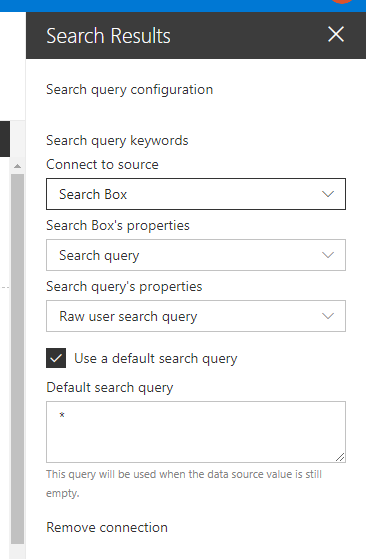
They are simple to use. The key is on the “Search Results” one. Just edit its properties and you can configure it through a wizard.

In the first page, you cann connect it to the search box, the search refiner and the pager
In the second page, you can configure the query (you can use {searchterms} to reference the searchbox contents), sorting, sortable fields, select properties, items per page, etc
In the last page, you configure the styling options.

The coolest part is on the last page. There, you can choose different layouts (the latest version also includes a details list), but the most useful one is the custom. There, you edit your template inline!

In this case, I added styles and updated the html to just look like a list

Just go ahead, clone the repo, build the webparts and use them in your projects!